
Shopify gives you a store. But static product pages can only do so much.
Shoppers today want to see the product in action how a dress fits, how a skincare serum applies, how a gadget works. Shopify live streaming gives them exactly that: a real person demonstrating a real product in real time, with a buy button right on screen.
The good news: adding live shopping to your Shopify store does not require a developer, a new website, or an expensive contract. With MyLiveCart, you can go live in under three minutes on your existing Shopify store for free.
This guide walks you through the complete setup from account creation to your first live shopping event.
Quick Answer: To add live shopping to your Shopify store, install MyLiveCart and connect it to your store in under 3 minutes no developer needed. Create a free account → connect Shopify via the Integrations panel → create a live event with products from your catalog → click Start Event. The stream embeds directly on your store with a live chat panel and in-stream buy buttons. Viewers add to cart and check out without leaving your site.
What Is Live Shopping on Shopify?
Live shopping also called live commerce or live selling combines real-time video with in-stream product purchasing. Viewers watch a host demonstrate products and add items to their cart without ever leaving the stream.
Brands using live shopping on Shopify have reported:
- 98 items sold in a single 23-day live shopping campaign (jewellery brand)
- 45% increase in sales within the first month of going live
- 3x increase in product inquiries and purchase intent
- 60% improvement in customer retention
These results come from a simple truth: live video builds the kind of trust a product photo cannot. Viewers see the product in context, get questions answered in real time, and feel urgency when a host says “only 12 left in stock.”
Get a Free Live Demo — See It Before You Build It →
What You Need Before You Start
Before you integrate live streaming into your Shopify store, make sure you have:
- An active Shopify store (any plan)
- Your Shopify store URL and admin credentials
- A device to stream from laptop, desktop, or smartphone
- Products already listed in your Shopify catalog
No special equipment, no streaming software, no technical background required.
How to Add Live Shopping to Shopify: Step-by-Step
Step 1 — Create Your Free MyLiveCart Account
Go to web.mylivecart.com/sign-up and create a free account. The free Starter plan includes everything you need to run your first events:
- 2,000 viewing minutes per month
- Unlimited live events
- Unlimited products per event
- Unlimited viewers
- Up to 1 hour of streaming per event
- Built-in event analytics
- Shopify plugin included
No credit card required.
Step 2 — Connect Your Shopify Store
Once inside your dashboard, the Shopify integration takes under 60 seconds:
- Click Integrations in the left navigation
- Select Shopify
- Enter your Shopify store URL (e.g.,
yourstore.myshopify.com) - Click Connect you’ll be redirected to Shopify’s authorization screen
- Click Install App to grant MyLiveCart access to your product catalog and orders
Your entire Shopify product catalog syncs automatically. Every product is immediately available to feature in any live event no manual importing.
Step 3 — Create Your First Live Shopping Event
Back in your MyLiveCart dashboard:
- Click Create Event
- Add an event name (this appears to viewers before the stream starts)
- Set a date and time schedule ahead or go live immediately
- Select the products you want to feature from your synced catalog
- Add an event thumbnail and description
- Choose your streaming device built-in browser camera or external device
You can also invite a co-host at this stage: a brand ambassador, influencer, or team member to appear on screen alongside you.
Step 4 — Go Live on Shopify
When your event time arrives:
- Open your MyLiveCart dashboard and click Start Event
- Your live stream embeds on your Shopify store instantly no code changes needed
- During the stream, click any product in your event panel to highlight it on screen
- Viewers see a “Add to Cart” button appear in real time
- Viewers add to cart and complete checkout without leaving the stream
That’s it. You’re live selling on Shopify.
Your store is ready. Run your first live event today it takes less than three minutes to set up.
What Your Shoppers See During a Live Event
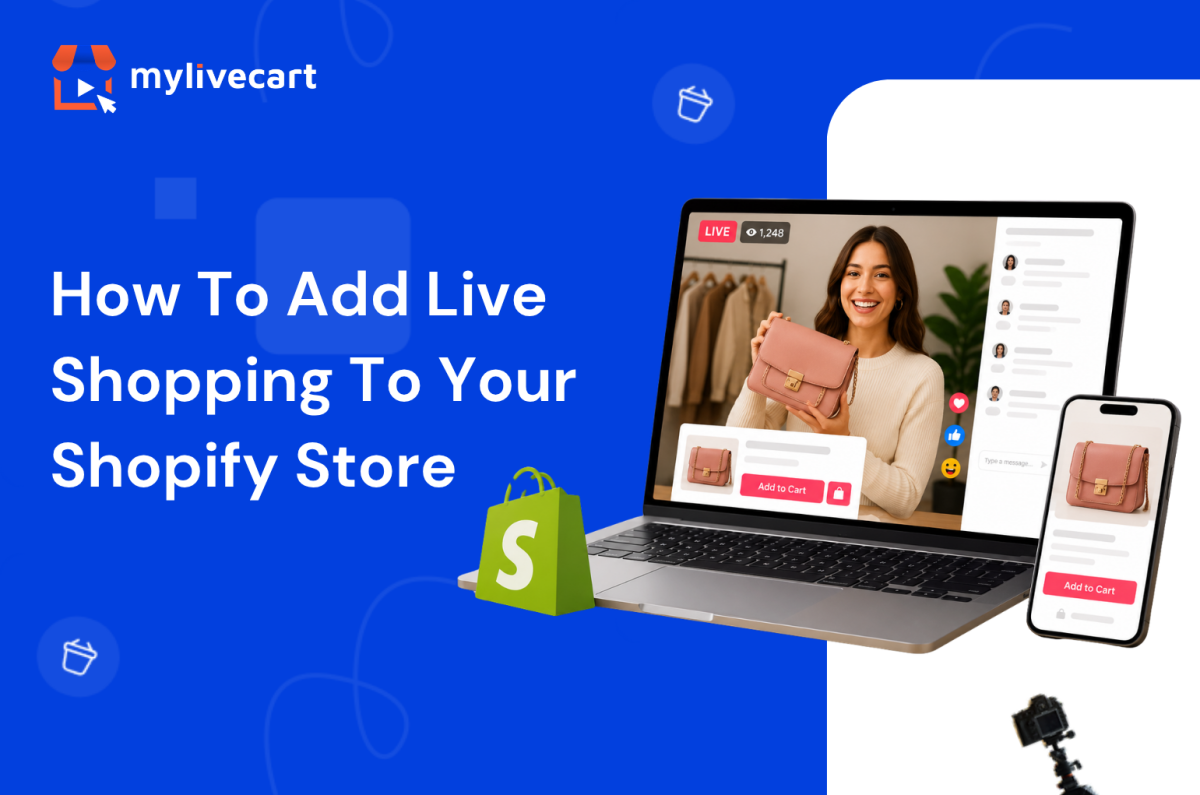
When a customer visits your store during a live event, they see a seamless experience powered by MyLiveCart’s built-in live shopping features:
- The live video stream embedded directly on your site
- A live chat panel to ask questions in real time
- Products highlighted by the host with a one-click “Add to Cart” button
- Emoji reactions from other viewers
- A live viewer count for social proof
Everything happens inside your Shopify store. Customers never leave your domain to watch the stream or complete a purchase which is fundamentally different from going live on Instagram or TikTok, where the sale happens on someone else’s platform.
How to Get More From Your Shopify Live Shopping Events
Promote Your Events 48–72 Hours in Advance
Announce across email, social media, and your store before going live. MyLiveCart lets you create a pre-event landing page that viewers can bookmark and share.
Brands that promote in advance consistently see 2–3x more viewers compared to unannounced streams.
Lead With Your Best-Selling Products
Open with your hero products the items that need the least explanation and sell fastest. This builds early momentum and keeps late-joining viewers engaged.
Use the Live Chat to Drive Urgency
Respond to questions by name. When you say “great question, Sarah yes, this dress also comes in XL,” that viewer is far more likely to buy than if they’d read a static description.
Time-limited in-stream offers work well: “The first 10 people to add this to cart get free shipping” creates immediate action.
Review Your Analytics After Every Event
Your event dashboard shows:
- Total viewers and peak concurrent viewers
- Products highlighted and items added to cart
- Conversion rate per product
- Average watch time
Use this data to improve your next event: shorten the intro, lead with your top converter, test different time slots.
MyLiveCart vs. Going Live on Instagram or TikTok
Many Shopify brands already go live on Instagram or TikTok. Here is how that compares to live shopping on your own store:
| Factor | Instagram / TikTok Live | MyLiveCart on Shopify |
|---|---|---|
| Where checkout happens | Third-party platform | Your Shopify store |
| Customer data ownership | Platform owns it | You own it |
| Algorithm dependency | Yes — reach controlled by platform | No |
| Shopify catalog integration | Limited | Full, automatic sync |
| Analytics | Basic views and likes | Detailed event + product analytics |
| Replay on your store | No | Yes (Pro and above) |
| Branded experience | Platform-branded | Fully your brand |
When you go live on Instagram, you are building Instagram’s audience. When you go live on your Shopify store with MyLiveCart, you are building your own.
Real Results from Shopify Brands Using MyLiveCart
“We sold 98 jewellery items in 23 days using MyLiveCart’s live shopping events. The real-time interaction made customers feel confident about their purchase.”
“Our first live event drove a 45% increase in sales compared to the same week last month. Customers loved being able to ask questions and see products up close.”
“We saw a 2x improvement in engagement rate and a 30% increase in website traffic after our first month of live shopping.”
These results come from brands in jewellery, fashion, skincare, and consumer electronics all using the same Shopify setup described in this guide. If you sell in fashion or jewellery, live shopping is particularly effective because buyers need to see the product move and fit before they commit.
Frequently Asked Questions About Shopify Live Shopping
Does live shopping work on mobile Shopify stores?
Yes. MyLiveCart is fully responsive. Viewers can watch, chat, and purchase from any device desktop, tablet, or mobile without installing any app.
Will adding live shopping slow down my Shopify store?
No. MyLiveCart’s video infrastructure is hosted separately and loaded asynchronously. Your store’s page speed scores are not affected by the integration.
Can I schedule a live event in advance?
Yes. You can schedule events days or weeks ahead and share the event link before going live. Viewers can register their interest and receive a reminder when the event starts.
How many products can I feature in one live event?
Unlimited. You can add your entire Shopify catalog to an event and highlight individual products one at a time during the stream.
Can I record and replay the live event?
Yes, on Pro and Business plans. Your live event is recorded automatically and can be shared as a replay on your store, via email, or on social channels.
Does MyLiveCart work with Shopify’s native checkout?
Yes. When a viewer clicks “Add to Cart” during a live event, the item goes directly into your Shopify cart. Checkout uses the same payment flow your customers already know.
What plan do I need to get started?
The free Starter plan is enough to run your first live events it includes 2,000 viewing minutes per month, unlimited events, and the Shopify plugin. Upgrade to Pro ($79/month) when you need more streaming minutes or advanced features like simulcasting and session recordings.
Get Started with Live Shopping on Shopify Today
Setting up live shopping on your Shopify store takes three minutes. You can run your first event today for free.
- Create your free MyLiveCart account
- Connect your Shopify store in one click
- Create an event and go live
Want a guided walkthrough before your first event? Book a free live demo and a MyLiveCart specialist will walk you through the entire setup.